If you have installed the Zulu JDK 11 and the Salesforce Data Loader and want to create your own Windows shortcut, follow these instructions.
Install Zulu OpenSDK version 11
I used the zip file to setup Zulu 11 on my Windows 10 system. Note, by not using the MSI installer there were software keys that were not created that probably are used by the Data Loader program.
- Zulu 11 folder: C:\java\zulu-jdk11
- set %JAVA_HOME% to C:\java\zulu-jdk11
- set %ZULU_JAVA_HOME% to C:\java\zulu-jdk11
- This was created only because of DataLoader.bat using it
Install Salesforce Data Loader
Setup (Production) | Data Management | Data Loader
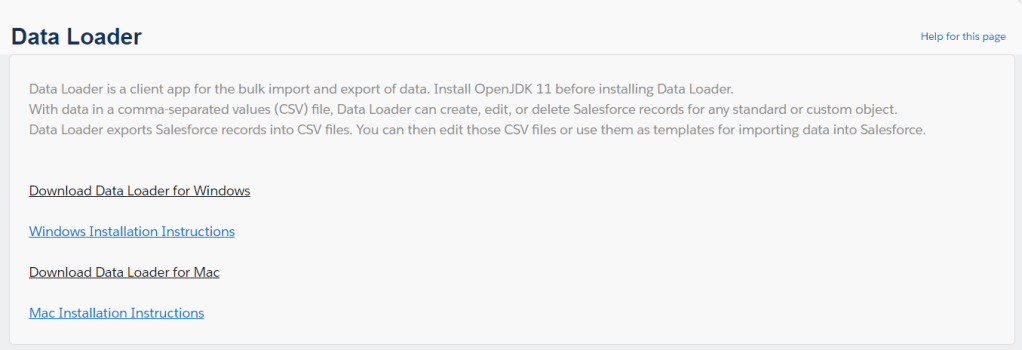
- I installed Salesforce Data Loader under C:\dev\dataloader_win
- I ran the install.bat file and it didn’t succeed at creating the desktop icon.
- Looking at the dataloader.bat file I could see the command it uses to run the Data Loader.
"%ZULU_JAVA_HOME%\bin\java" -jar dataloader-49.0.0-uber.jar salesforce.config.dir=configs
Create Windows Shortcut Key
- Select the jar file “dataloader-49.0.0-uber.jar” and right-click “Create Shortcut”
- Right-click the new shortcut file
- I set my “Start in” folder:
- C:\dev\dataloader_win
- I set the Target value change to:
- java -jar dataloader-49.0.0-uber.jar salesforce.config.dir=configs
- Set the icon file
- C:\dev\dataloader_win\dataloader.ico
- Apply and Okay
- I set my “Start in” folder:
- Double-click the new shortcut to test
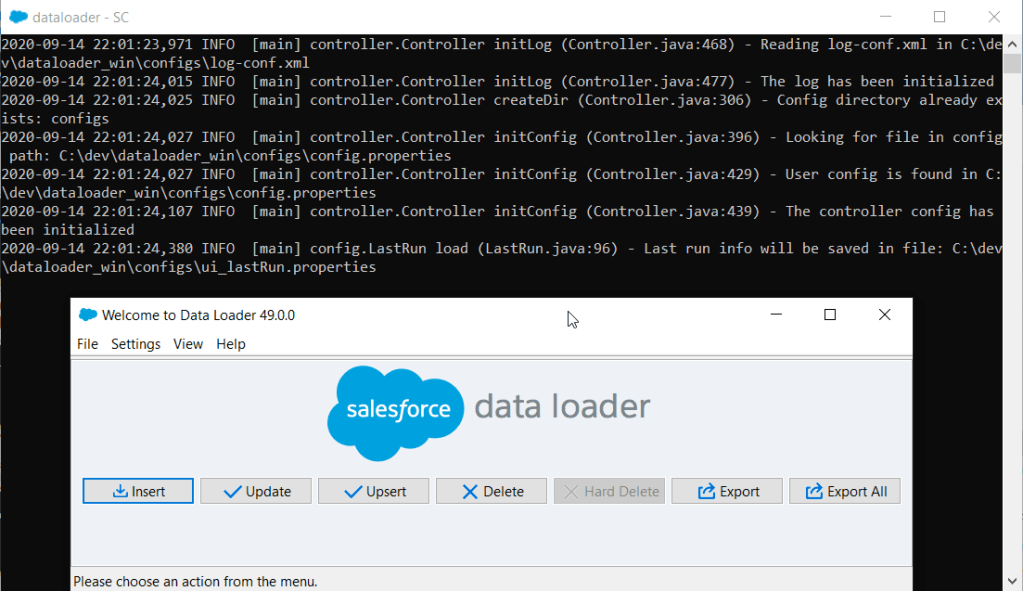
The above can be a reference for any Java .jar file that you wish to setup a Windows Shortcut for and add parameters.

 The Life Blog